Prepare worship for two screens, once.
Use the order of service your team already writes to plan the congregation screen, the operator console, and an offline PowerPoint deck. One slide plan drives every output.
Windows desktop (experimental)
- Free, MIT license
- Runs on your own server
- Runs without internet
- PowerPoint export
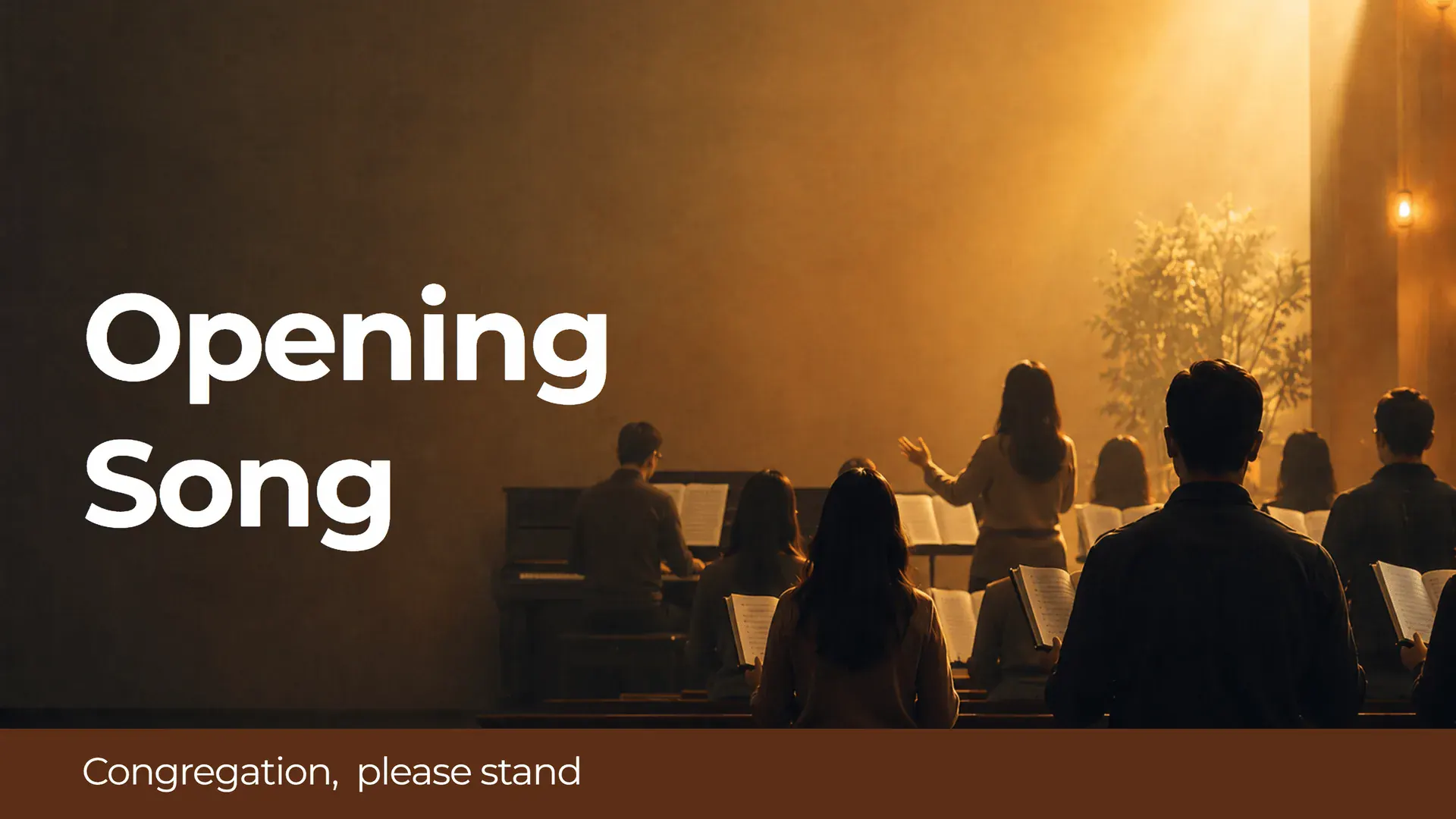
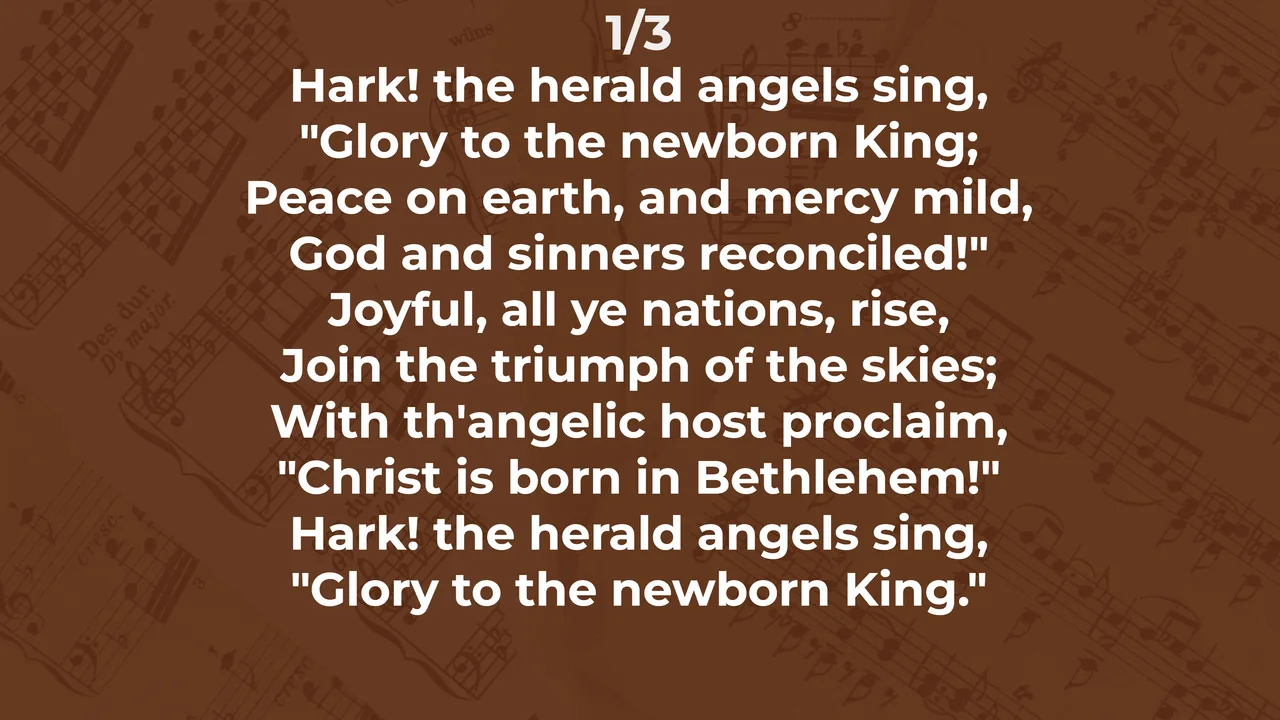
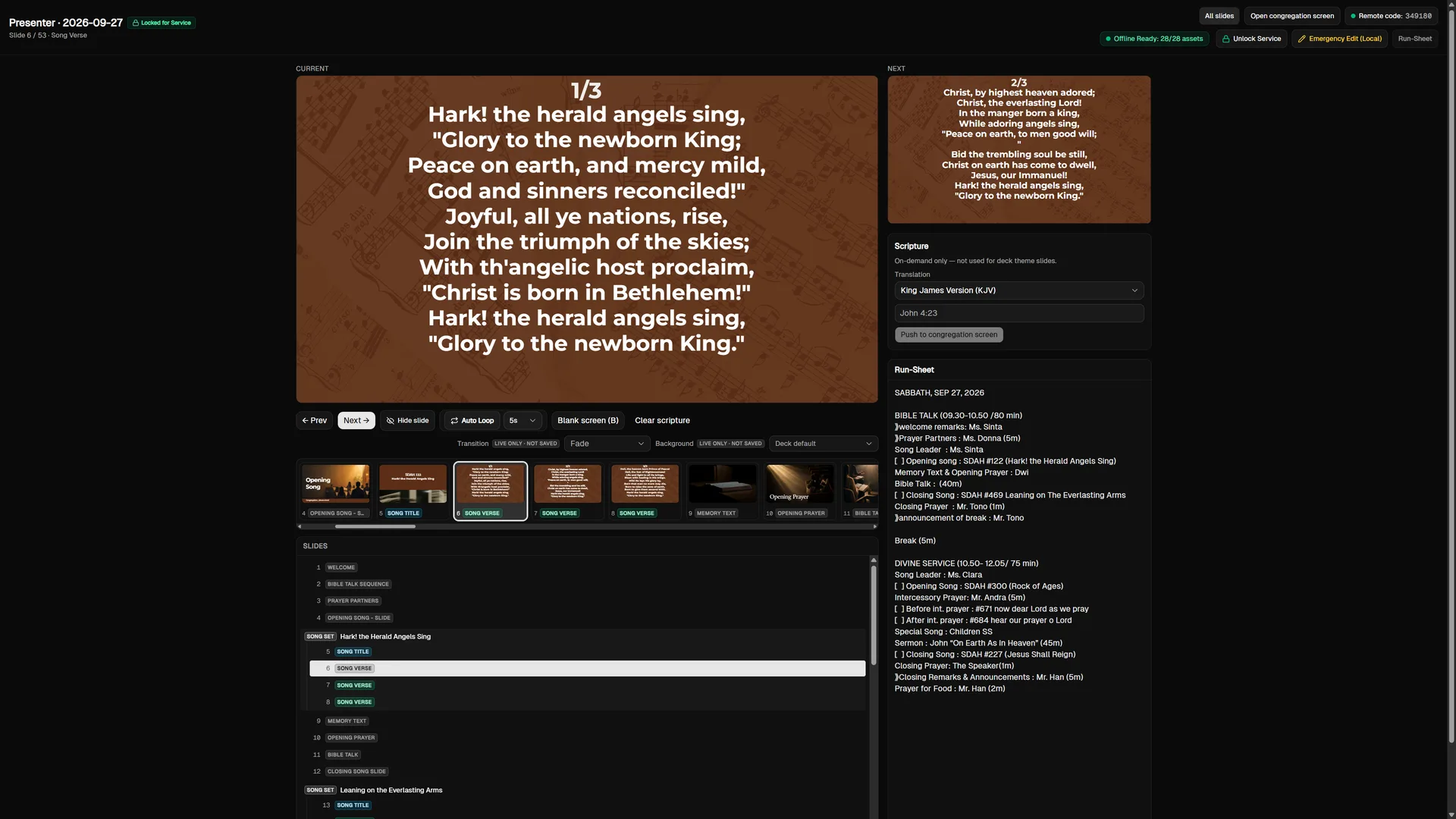
The order of service your team already writes is the slide plan
Most churches share the order of service every week, in a group chat or a meeting note. WorshipDeck starts from that text. A parser set up for orders of service picks out the hymn numbers, readings, and names, and builds the slides from them, so nobody rebuilds the deck by hand each week.
SABBATH, OCTOBER 12, 2026
Opening Song: SDAH #122
Verse Reading: Psalm 23:1-6
Prayer: Sis. Maria
Sermon: Pr. Samuel "The Lord Is My Shepherd"
Closing Song: SDAH #469
Lunch together after the service
This example uses the SDAH hymnal because it is the only hymnal included today. The labels are the ones the built-in parser recognizes.
Step 1
Paste the order of service
Copy it from WhatsApp or your notes and paste it into the service form. Sending it from Telegram or a script through a webhook is coming soon.
Step 2
The parser fills the fields
Predefined fields for your liturgy, such as opening hymn, reading, and preacher, are filled from the text. You can add fields and test the matching rules in a sandbox.
Step 3
Present, or Export to PowerPoint
Present from the operator console to the congregation screen, or save the same slides as a .pptx file with the fonts inside.
For preparing, presenting, and running worship
Eight features for church multimedia teams.
Prepare
Rundown intake
Paste a service plan to fill structured fields and a slide plan. Intake through a webhook or Telegram is coming soon.
How the parser worksPrepare
Layout Canvas
A new install starts with no layouts. Build them on the canvas, or import slides from a PowerPoint file to start faster. Sample layouts appear only in demo mode.
See the canvasPresent
Offline PowerPoint export
Create a standalone .pptx from the same slide plan, with the fonts embedded, so it opens correctly on a guest laptop. A slide hidden with the eye icon is left out of the export.
About the exportPresent
Two-screen presenter
The operator gets a console with the current and next slide and an eye icon to hide a slide from this run; the congregation gets a clean 16:9 screen. Press B to blank it at once. If the server briefly drops mid-service, the presenter keeps projecting from a local copy, with an Emergency Canvas Designer for drafting a replacement slide on the spot.
See the consoleOperate
Phone remote over Wi-Fi
Pair a phone browser on the church Wi-Fi and change slides from the pulpit or the stage. No internet connection needed. Works when WorshipDeck runs on a server; the desktop installer does not support it.
Pair a phoneOperate
Built-in hymnal and Bible
The Seventh-day Adventist Hymnal (695 hymns) and the King James Version (31,102 verses) are stored locally. Both are in English. Push any verse to the congregation screen live from the operator console.
What is includedConfigure
Service form
Change the fields, their groups, input lengths, and the matching rules to fit how your church runs its service. Test the rules before you use them.
Set up the formConfigure
Announcement flyers
Upload flyers into sets you keep. The operator loops a set on the congregation screen while the loop is on, for example before the service starts.
Manage flyersOne server on your church network
WorshipDeck is a Go server with the interface built in. The operator console, the congregation screen, and the phone remote open in a browser on your church network. It needs no Docker and no remote database.
- Local data. Services, layouts, the hymnal, and the Bible live in one SQLite database file on your server.
- No telemetry. No tracking cookies, usage pings, or analytics calls to outside servers.
- PowerPoint offline. The .pptx file, fonts included, is built on the same server.
// A real start, shortened
$ npm run spa:build && npm start
api listening on http://127.0.0.1:3000/
[corpus] reconciled KJV from data/en/bible-translation/kjv.json
// Set LISTEN_HOST to reach it from other devices on the church network
Your congregation's data stays in your church
Built for the church's own network, not for a cloud account you must sign in to. The service library, media, and rosters stay with your team.
No cloud account
No subscription sign-in or activation server to get past before a service. Accounts for your team live on your own server.
Works without internet
If the church Wi-Fi drops five minutes before the service, hymn search, slide changes, and the congregation screen keep running.
PowerPoint as a backup
Export a .pptx with its fonts to a USB drive as a fallback for a visiting speaker.
Set Up the Way Your Team Works
Two settings an administrator changes once for the whole team, and one more way to run the service from a phone.
English or Indonesian Interface
An administrator switches the operator screens between English and Indonesian in Settings. The choice applies to every operator on your server. The congregation screen shows only your slides, so it does not change.
Slide Transitions
Choose none, cut, fade, dissolve, or push once in Settings. The congregation screen and the exported PowerPoint use the same transition, and a single slide can opt out.
Verses From the Phone Remote
The phone remote can look up a Bible reference and show it on the congregation screen, the same as the operator console. It works when WorshipDeck runs on a server. The bundled Bible is the King James Version, in English.
Install It on Your Church Network
Free and open source under the MIT License: no license key and no subscription. A Windows desktop installer is also available as an experimental build.
On your own server (recommended)
Install and start
git clone https://github.com/wiradeltaid/worship-deck.git
cd worship-deck
npm install
npm run setup
npm run spa:build && npm start Needs Go 1.24 or later and Node.js 22.12 or later. Open port 3000 in a browser.
Windows desktop (experimental)
Desktop installerExperimental · Windows 10 and 11, 64-bitWorshipDeck-0.1.1-x64-setup.exe
Before you install
Running it on your own server
This is the main way to run WorshipDeck. npm run setup creates the database, fresh secrets, and the admin password; npm start serves the operator console, the congregation screen, and the phone remote from one address on your church network. The database is embedded SQLite, so there is no database server to set up.
Keeping it safe
Serve it behind HTTPS, also on the church network. Keep the secrets in .env unique to your installation and out of any repository, and back up the database and the uploads folder. The security page lists what to check.
The desktop installer is experimental
WorshipDeck-0.1.1-x64-setup.exe runs the same app on one Windows computer as its own desktop window, not a browser tab, installs into your user profile without administrator rights, and keeps your database when you update. The installer is in English and Indonesian and follows the Windows display language, shows the MIT license text before installing, and asks on uninstall whether to also delete your locally stored data folder (the default answer is No). It is still experimental: test it on the computer you will use before a service depends on it. It is not code-signed yet, so Windows SmartScreen may warn on first run.
License
The code is released under the MIT License: you may use, copy, and change it. The bundled hymn texts belong to their own copyright holders and are included for worship use only. Read the license page.
Frequently Asked Questions
Is WorshipDeck really free for churches?
Yes. WorshipDeck is MIT-licensed, so any church can install it on any computer at no cost, with no license key and no subscription. There is no paid edition that locks features away.
How do I turn our order of service into slides?
Copy the order of service your team already shares in a group chat or meeting notes, then paste it into the WorshipDeck service form. The parser reads the running order and builds a slide plan. Lines it does not recognize stay visible for you to review. The slides are then ready to present or export to PowerPoint. After the first setup, preparing a weekly service usually takes under 10 minutes.
Do we need an internet connection during the service?
No. Lyric search, slide changes, and the congregation screen all run on the church computer itself. The phone remote only needs the church Wi-Fi, not an internet connection.
Which hymnal and Bible are included?
The Seventh-day Adventist Hymnal (695 hymns) and the King James Version (31,102 verses) are included and stored on your server. Both are in English. No other hymnal or Bible translation is bundled yet.
Can WorshipDeck replace EasyWorship or ProPresenter?
It can, if your service fits what WorshipDeck does today: lyrics from the SDAH hymnal, KJV verses pushed live from the console, slides imported from PowerPoint, announcement flyers, and a two-screen setup. It does not play video backgrounds, has no stage display, cannot import song libraries from other software, and its built-in hymnal and Bible are English only. Because it is free, you can run it alongside your current software before deciding.
What computer do we need?
A computer or small server that can run Go 1.24 or later and Node.js 22.12 or later on your church network; the screens open in a browser. For a two-screen setup, connect a projector or TV to the presenting computer as a second display. The experimental Windows desktop installer needs 64-bit Windows 10 or 11 and no administrator rights.
Tip the studio
Free whether or not you do this. A tip goes to the studio that makes it. WorshipDeck is MIT-licensed: no paid tier, nothing to unlock. A tip does not buy priority support.